































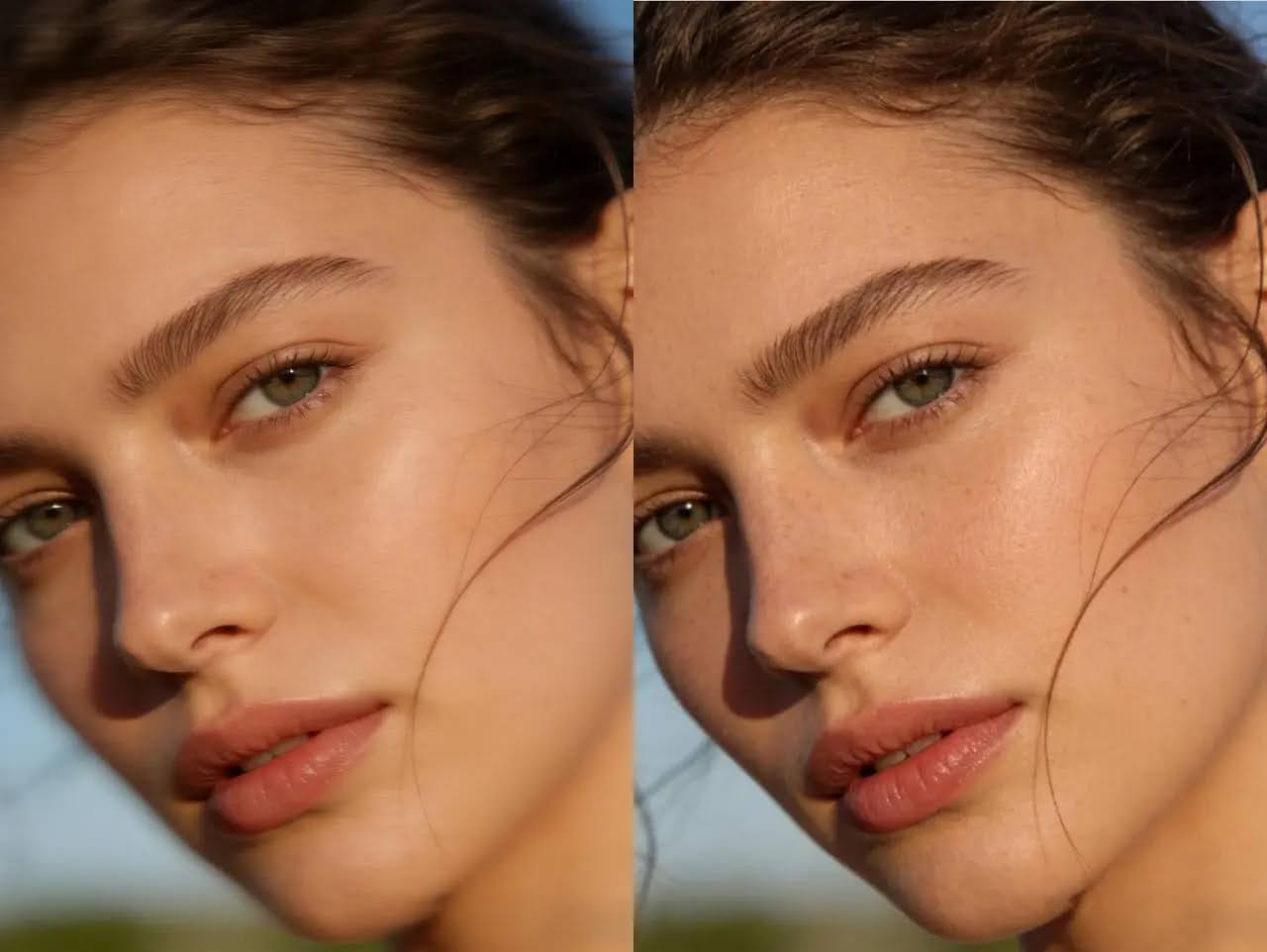
DALL-E 4 and other AI image generators are incredible tools for creating stunningly realistic portraits. With just a simple prompt, you can generate faces that look almost indistinguishable from real photographs. However, many artists and designers notice a common issue: the skin often looks too perfect. It can appear plasticky, overly smooth, or digitally sharpened, lacking the organic texture that makes a human face feel alive.
This hyper-realistic but flawed output happens because AI models are often trained on professionally edited photos, leading them to erase the subtle imperfections that define real skin. The result is a portrait that, while technically impressive, falls into the uncanny valley. Fortunately, you don’t have to settle for lifeless AI skin. In this guide, we’ll walk you through a step-by-step process to add natural, organic skin texture back into your DALL-E 4 renders using popular photo editing software. While some tools can help you Unblur Image files that are out of focus, our tutorial focuses on adding detail, not just correcting blur.
Join The European Business Briefing
New subscribers this quarter are entered into a draw to win a Rolex Submariner. Join 40,000+ founders, investors and executives who read EBM every day.
Subscribe
Why DALL-E Renders Can Look Unnatural
Before we dive into the solution, it helps to understand the problem. AI image generators analyze massive datasets of images to learn what a “human face” looks like. This dataset often includes heavily retouched photos from advertisements, stock photography, and social media. The AI learns that “high quality” often means flawless skin, free of visible pores, fine lines, or minor blemishes.
As a result, the AI often over-corrects, smoothing skin to a degree that looks unnatural. It flattens the micro-details that catch light and create depth. This process is similar to how a Video Enhancer can sometimes over-sharpen footage, making it look crisp but artificial. Restoring these subtle imperfections is the key to transforming a good AI portrait into a great one that feels authentic and human.
Step-by-Step Guide to Adding Realistic Skin Texture
This tutorial uses Adobe Photoshop as the primary example, but the same principles and techniques can be applied in free, layer-based alternatives like GIMP or Photopea. The key is to work non-destructively using layers, which allows you to adjust the effect at any time.
Step 1: Prepare Your Workspace
First, open your DALL-E 4 generated portrait in your editing software. To ensure you can always revert to the original, it’s best to work on a duplicate layer.
- Open the Layers panel.
- Right-click on your background layer (the portrait) and select “Duplicate Layer.”
- Name this new layer something descriptive, like “Texture Base.” All our work will be done on layers above this one.
This simple step protects your original render, giving you the freedom to experiment without worrying about making permanent changes.
Step 2: Create a Neutral Gray Canvas
Next, we need a dedicated layer to build our texture on. A 50% gray layer set to an “Overlay” blend mode is perfect for this. It becomes invisible while allowing any details added to it (like noise or texture) to blend seamlessly with the image below.
- Create a new layer above your “Texture Base” layer and name it “Texture Canvas.”
- Go to Edit > Fill.
- In the “Contents” dropdown, choose “50% Gray” and click OK. Your screen will turn gray.
- In the Layers panel, change the blend mode of this “Texture Canvas” layer from “Normal” to “Overlay.” The gray will disappear, and your original image will reappear.
This layer is now ready to receive texture information that will only affect the lightness and darkness of the pixels underneath it.
Step 3: Add Micro-Noise for Pores
Real skin has millions of tiny pores and follicles that create a very fine, almost invisible noise pattern. We can replicate this foundational texture using a simple noise filter.
- Make sure your gray “Texture Canvas” layer is selected.
- Navigate to Filter > Noise > Add Noise.
- A dialog box will appear. Set the Amount to a very low value, typically between 2% and 6%.
- For the Distribution, select “Gaussian.”
- Crucially, check the “Monochromatic” box. This ensures the noise is black and white and won’t add unwanted color specks.
Click OK. You should see a very subtle, fine-grained texture appear on the skin. This step alone goes a long way in breaking up the overly smooth AI finish.
Step 4: Use a Texture Overlay for Realism
For more pronounced and realistic pores, using a dedicated skin texture image is a powerful technique. You can find free or paid skin texture maps online by searching for “high-resolution skin pore texture.”
- Find a high-resolution, evenly lit image of skin texture.
- Drag and drop this texture image into your document. It will appear as a new layer. Position it over the face.
- Desaturate the texture layer by going to Image > Adjustments > Desaturate (or use the shortcut Ctrl+Shift+U).
- Set this texture layer’s blend mode to “Overlay” or “Soft Light.”
- Lower the layer’s opacity to a subtle level, usually between 10% and 30%. The goal is to suggest texture, not to overwhelm the image with it.
Step 5: Masking for Precision
Skin texture is not uniform across the entire face. It shouldn’t appear on lips, eyes, or hair. We’ll use a layer mask to apply our new texture only where it belongs.
- Select your texture overlay layer (and your noise layer, if you want more control).
- Click the “Add Layer Mask” icon at the bottom of the Layers panel. A white rectangle will appear next to your layer thumbnail.
- Select the Brush tool and choose a soft, round brush. Set your foreground color to black.
- With the mask selected, paint over the areas where you want to hide the texture. This includes the eyeballs, lips, nostrils, hair, and any jewelry or clothing.
This step is critical for making the effect believable. You can adjust the brush opacity to partially remove the texture from areas that are naturally smoother, like the bridge of the nose.
Tips & Best Practices
Getting the right look takes a bit of practice. Here are a few tips to help you achieve the most natural-looking results.
* Subtlety is Key: Always start with lower opacity and noise settings. It’s easier to build up an effect gradually than it is to tone down one that is too strong. The best texture work is almost unnoticeable at first glance.
* Study Real References: Look at close-up, unedited photos of faces. Pay attention to how skin texture changes across different parts of the face. The cheeks have a different pore structure than the forehead or chin.
* Vary Your Approach: Don’t rely on a single texture. Consider layering multiple noise filters at different sizes or using more than one texture overlay for different facial regions to create a more dynamic and realistic surface.
* Combine with Dodging and Burning: To add more depth, you can use a dodge and burn layer to subtly lighten and darken areas, enhancing the contours of the face and making the new texture pop.
Common Mistakes to Avoid
As you learn this technique, there are a few common pitfalls that can make your edits look unnatural.
* Applying Uniform Texture: Spreading the exact same texture pattern across the entire face is a clear sign of digital manipulation. Use masks to vary the intensity and break up the pattern.
* Forgetting to Mask Key Features: Nothing screams “fake” faster than seeing skin pores on someone’s eyeball or lips. Be meticulous with your masking.
* Using a Low-Resolution Texture: If your texture overlay is low-quality, it will look blurry and pixelated, defeating the purpose of the edit. Always use high-resolution source images.
* Over-Sharpening the Final Image: After adding texture, avoid the temptation to apply a global sharpening filter. This can re-introduce the artificial look you were trying to fix. If you need to sharpen, do it selectively on areas like the eyes and hair.
Conclusion
AI image generators like DALL-E 4 are powerful tools for creativity, but they aren’t perfect. By understanding their limitations, you can use standard editing techniques to add the final 10% of polish that makes an image truly believable. Adding organic skin texture is a simple yet transformative process that bridges the gap between a technically good render and a genuinely compelling portrait.
By layering subtle noise, using high-quality textures, and masking with care, you can conquer the uncanny valley and bring a new level of humanity to your AI-generated artwork. Experiment with these steps, and you’ll soon be able to turn any “plastic” AI face into a portrait that feels real and full of life.