




























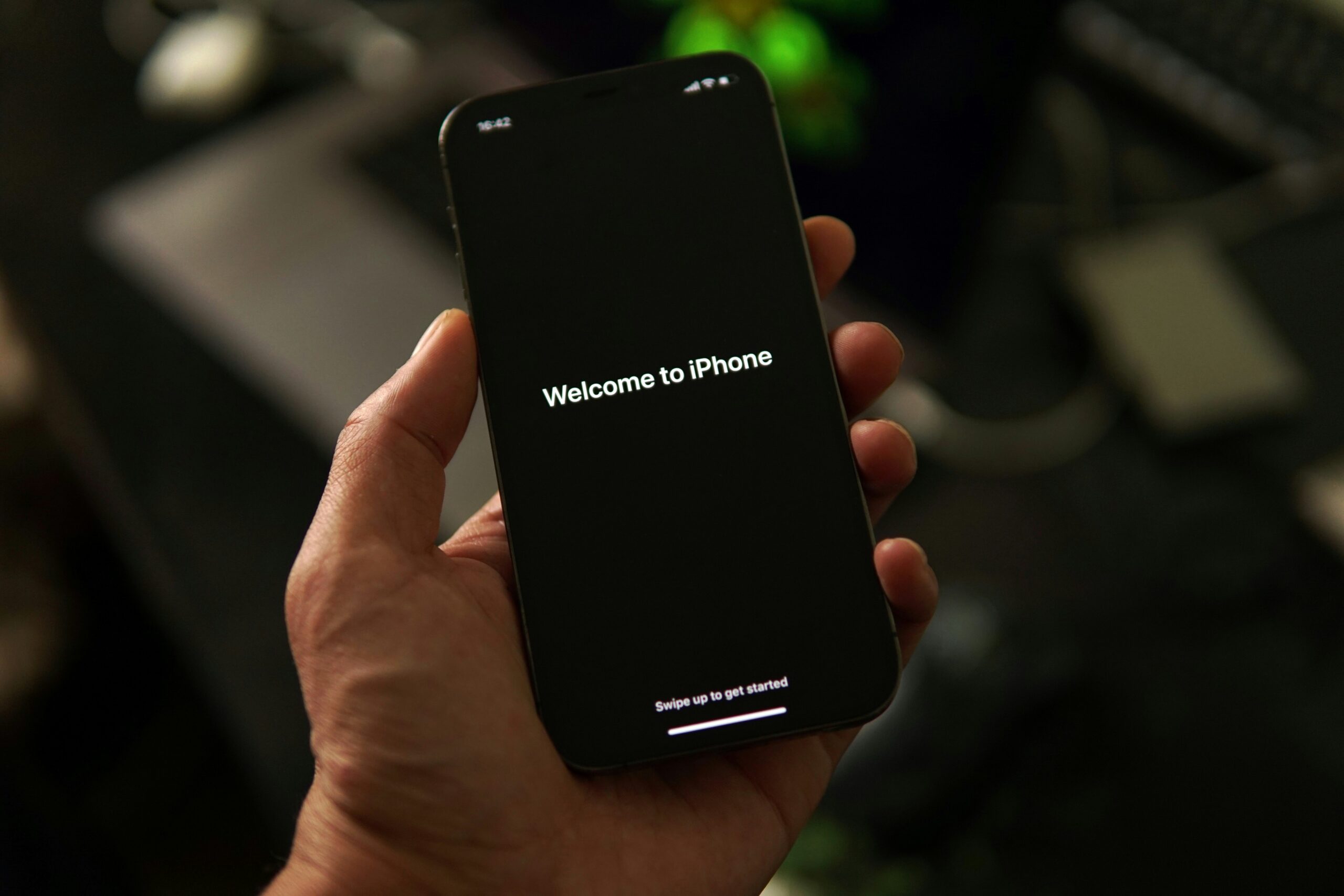
In the world of smartphone safety, your passcode acts like a vital protection, shielding your personal and sensitive info from sneaky intruders. Since our iPhones are full of digital assets, having a robust passcode is like giving your device an additional cloak.
It’s a key player in beefing up your gadget’s defenses. This post is your guide to understanding the steps for switching up the passcode on your iPhone and additional security measures you can take to enhance safety.
Notably, while a strong iPhone passcode is essential for keeping unwanted people out of your device, true digital privacy requires more than just a lock screen. From encrypted messaging apps to VPNs and password managers, the best online privacy tools available today can complement your iPhone’s built-in security by protecting your browsing habits, hiding your IP address, and ensuring your personal data doesn’t leak across the apps and services you use daily. Think of your passcode as the front door lock—privacy tools are the security cameras, blinds, and alarms that work alongside it.
Join The European Business Briefing
New subscribers this quarter are entered into a draw to win a Rolex Submariner. Join 40,000+ founders, investors and executives who read EBM every day.
SubscribeWhy You Should Use a Strong iPhone Passcode
It’s super important to have a strong passcode for your iPhone, and here’s why it matters:
- Protection against Unauthorized Access: Passcode is the first defense against random people trying to get into your iPhone.
- Thwarting Data Thieves: If your iPhone goes missing, a tangible passcode makes it difficult for thieves to swipe your data.
- Money Matters: Many of us use our iPhones for banking and shopping. A strong passcode is an extra lock on your virtual wallet, protecting your financial information from digital fraud.
- No to Identity Theft: Your iPhone is practically an ID card for you in digital form. A robust passcode and Identity theft? Not on your watch.
- Securing Corporate Data: For workaholics, a strong passcode is like a security detail for your corporate data. It ensures that only work-related data gets attention from the right people, keeping business communications and data intact.
- Device Integrity: Your passcode helps fend off malware, sketchy updates, or other digital threats that might harm your iPhone’s security.
- Compliance with Security Standards: Certain industries and groups have their own security rules. Using a unique passcode protects you from any legal or regulatory issues.
- Peace of Mind: Knowing your iPhone is locked up tight with a strong passcode gives you peace of mind.
So, having a rock-solid iPhone passcode is like putting a digital defense around your information, keeping it safe from all digital perils.
Step-by-Step Guide to Changing Your iPhone Passcode
For iOS 15 and later
- Open Settings. It’s the gear-shaped icon usually found on your home screen.
- Depending on your iPhone model, you can use Face ID & Passcode or Touch ID & Passcode.
- Enter your current passcode to proceed.
- After entering your current passcode, Tap on “Change Passcode.”
- For security purposes, enter your current passcode one more time.
- Now, you can enter your new passcode. Remember, it’s something you can remember but not easily guessable for security reasons.
- Enter the new passcode again to confirm.
- You’ve successfully entered and authorized your new passcode.
For iOS 14 and earlier
- Open the Settings app on your iPhone.
- Tap Touch ID & Passcode.
- Enter your current passcode.
- Look for the “Change Passcode” option and tap on it.
- Re-enter your current passcode.
- Input your new passcode. Make sure it’s something memorable but secure.
- Confirm your new password by entering it again.
- Once you’ve confirmed your new passcode, it’s active on your iPhone.
How to Reset a Forgotten Passcode
- Forgot your passcode? No sweat, but this will wipe your device, so make sure you’ve got a backup.
- Connect your iPhone to your computer and open iTunes (or Finder on macOS Catalina and later).
- Force restart your iPhone (look up how to do this for your specific model).
- When the Connect to iTunes or recovery mode screen appears- release the buttons.
- iTunes or Finder will detect your device in recovery mode. Click on Restore.
Extra Tips for iPhone Security
- Two-Factor Authentication: Enable two-factor authentication for an extra layer of security. It means even if someone cracks your passcode, they’ll still need another verification step.
- Automatic Updates: Keep your iPhone’s software updated. Apple often releases security patches in updates, so having the latest software is like having a digital shield.
- App Permissions: Review and manage app permissions. Only give apps the access they need to keep your data safe.
- Find My iPhone: Activate Find My iPhone. This feature can help you locate, lock, or erase your device if it ever goes missing.
- Touch or Face ID: Use Touch ID or Face ID to make your iPhone more secure.
Conclusion
Switching up your iPhone passcode is a forward-thinking move to amp up the protection of your virtual defense. By sticking to these straightforward yet powerful steps, you’ve essentially seized control of your device’s security, giving yourself the upper hand in the constant fight against potential digital threats.
FAQs
I forgot my passcode. What’s the fix?
If your passcode slips your mind, brace yourself for a factory reset—say farewell to all your data. So, stay one step ahead by regularly backing up your iPhone to iCloud or iTunes and dodge the data loss bullet.
Can I ditch the passcode and roll with Face ID or Touch ID?
Absolutely! If your iPhone features Face ID or Touch ID, these biometric techs can replace your passcode. Hit up Settings, follow the steps, and you’ll find the options to set up either Face ID or Touch ID.
How often should I shake things up with a new passcode?
There are no strict rules, but it’s smart to change your iPhone passcode every few months.
Can I amp up my passcode with a longer alphanumeric combo?
Totally! Level up your security game by crafting a custom alphanumeric passcode.