



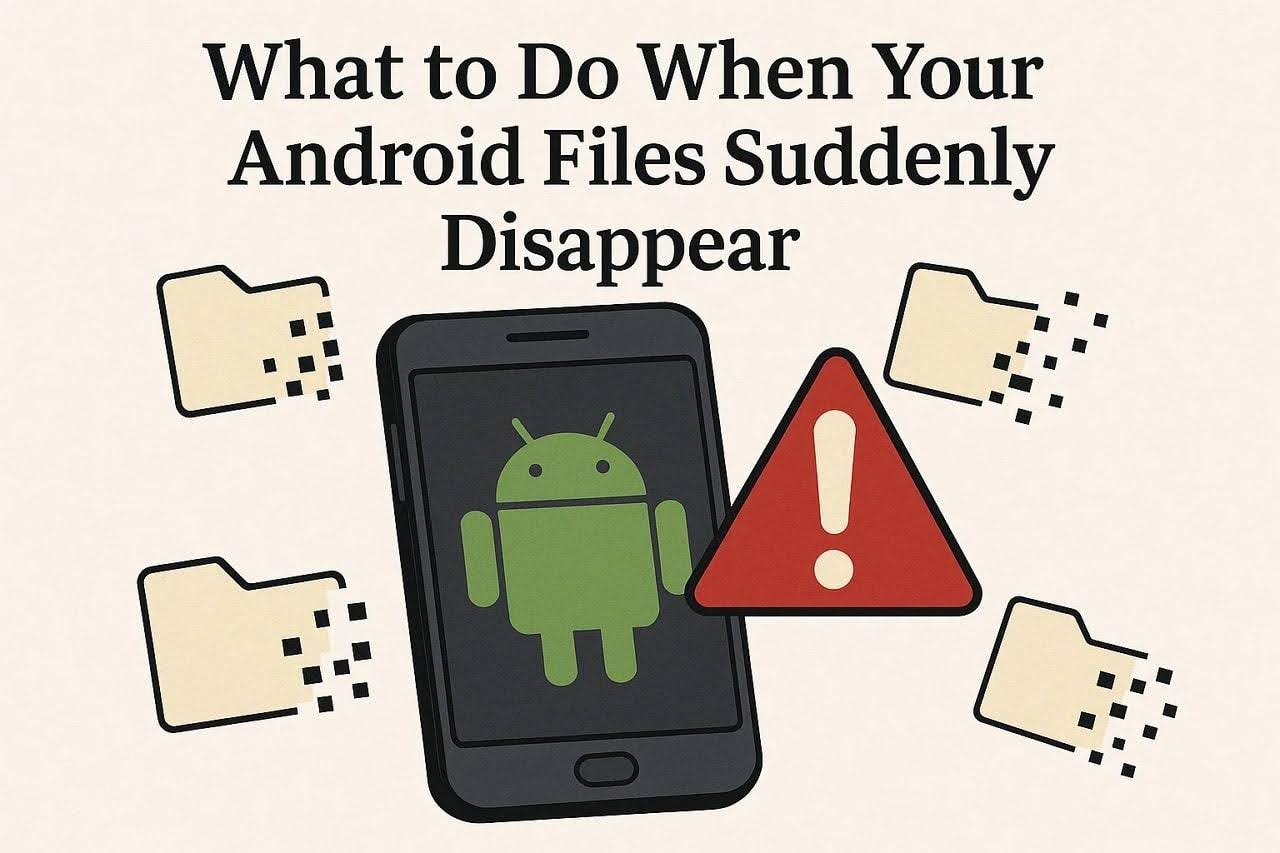
While using your phone daily, you may notice moments where files disappear for no apparent reason. Perhaps you have deleted something by mistake, or your memory card broke. It is not unusual that at such a moment, one is more than concerned that such photos or documents were valuable.
Multiple smart and quick checks can usually solve the problem easily. With the help of an Android data recovery app, you can bring them back easily. So, this guide will show you practical steps to find and recover missing files quickly and safely.
Join The European Business Briefing
New subscribers this quarter are entered into a draw to win a Rolex Submariner. Join 40,000+ founders, investors and executives who read EBM every day.
SubscribePart 1. 5 Common Causes of File Loss Situations
Sometimes files disappear without warning, leaving users confused about what went wrong. Thus, understanding these causes will make data recovery easier and prevent the same issue:
- App Crashes: Unstable apps can stop working and delete stored data during unexpected shutdowns. This can damage or remove data stored within the app’s local folders.
- System Updates: Software updates may reset settings or clear temporary files during installation. Incomplete updates can also remove cached data or disrupt stored media paths.
- Malware Attack: Malicious programs can hide or delete essential files without any visible warning. These attacks often spread through unsafe apps or suspicious downloaded attachments.
- Mistaken Deletion: People delete files mistakenly while removing unwanted items from their phones. This mistake usually happens when similar file names or duplicate photos create confusion.
- Storage Full: When internal memory reaches its limit, the system may remove cached data automatically. It can also prevent new files from saving properly on your phone.
Part 2. Quick Checks Before Using Recovery Software
It’s best to perform some simple checks first before trying any advanced tools. Such quick procedures help you find hidden or misplaced files on your phone. Doing this can even save time before starting photo recovery or other file restoration methods:
| Check | What to Do | Why It Helps |
| Restart Phone | Turn your device off and back on. | Refreshes the system and reloads missing file paths. |
| Check Trash Folder | Open your File Manager or Gallery’s Trash section. | Deleted files may remain there temporarily before removal. |
| Use File Search | Use the search bar to find file names directly. | Helps locate misplaced items saved in unknown folders. |
| Check Hidden Files | Enable “Show hidden files” in File Manager settings. | Some apps hide data that appears lost after updates. |
| Inspect Storage | Go to Settings > Storage to view file usage. | Confirms if files still occupy space but aren’t visible. |
| Remove SD Card | Eject and reinsert your SD card safely. | Fixes reading errors that may hide stored files temporarily. |
| Check Cloud Backup | Open Google Drive or similar cloud apps. | Files may have synced automatically before deletion. |
Part 3. Using File Recovery Tools for Android
When simple checks fail, using professional tools becomes the most reliable solution. Among the available tools, Dr.Fone Data Recovery App is a top choice for Android file recovery. It supports data retrieval from more than 6,000 Android devices, including Samsung models. This app allows users to recover multiple types of deleted data, such as photos and documents, efficiently.
Users can utilize the app’s dedicated “Recover Deleted Data” feature to access their deleted data. Plus, it requests access to your device’s data to scan for lost or deleted files efficiently. This file recovery app displays recoverable files grouped by data type, making it simple to select what you want. It also provides real-time scanning results that show thumbnails of retrievable files instantly.
Key Features
- App Data: Restores lost information from popular social or productivity applications securely.
- Recycle Bin: Scans Android’s recycle bin to recover recently removed files effortlessly.
- Selective Recovery: Users can choose specific file types for restoration instead of everything.
Guide to Recover Deleted Android Data Using Dr.Fone App
You can go through the given guide to know how you can use this file recovery app for effortless data retrieval:
Step 1. Open Dr.Fone App to Initiate Data Recovery
As you access the main screen of the Dr.Fone App, opt for the “Recover Deleted Data” feature. Pick the categories you want to restore and tap “Allow” to let the app scan for deleted content.
Step 2. Review and Select Lost Files
Once the scan is complete, browse through the recovered results and choose your desired files for retrieval. Upon selecting them, press the “Recover” option to proceed.
Step 3. Save the Recovered Data to Your Phone
When prompted, select your desired storage location and hit “Save” to export the recovered data.
Part 4. Recovering from External Storage
Besides, your missing data may be stored on a storage card or USB drive. These external devices can experience corruption or improper ejection, causing data loss. So, checking them properly ensures you don’t lose valuable content stored outside your phone memory. First, confirm that the SD card or USB device is correctly connected and readable. In case it doesn’t appear, remove and reinsert it gently to refresh the device connection.
You can also try using another phone or computer to test external storage functionality. Doing this helps identify whether the issue lies with your phone or the storage. When files still seem missing, try using an Android data recovery app for Android, like Dr.Fone Data Recovery App. The tool scans connected SD cards or USB OTG drives for deleted or hidden files.
Part 5. Some Preventive Tips to Avoid Future File Loss
Before files disappear again, it’s smart to take simple steps to protect them. Below, you will explore a few tips that reduce data recovery needs and keep your information safe:
- Cloud Sync: Enable automatic syncing for photos, videos, and documents through cloud-based applications. It helps store your data online securely and makes future recovery much easier.
- App Updates: Keep all applications updated to avoid crashes that can cause unexpected data loss. Updated apps have improved stability and fewer chances of deleting your stored files.
- Safe Ejection: Always eject SD cards or USB devices properly before removing them from phones. So, doing so prevents file corruption and damage caused by sudden disconnections during access.
- Sufficient Storage: Keep enough free space available in your device’s memory for smooth performance. Limited storage increases errors that can delete or hide your stored data.
- Periodic Checks: Check your storage and folders regularly to confirm your data is intact. Early detection of missing files helps quick recovery before overwriting or complete loss occurs.
Conclusion
In conclusion, most missing data can be recovered using simple checks or trusted recovery tools. Understanding the main causes helps you avoid the same issues later. Still, when native methods fail, opting for an Android data recovery app for Android becomes essential. In such cases, Dr.Fone App offers the easiest and safest way to recover your deleted files effectively.

