





Traveling to New Zealand is exciting, but staying connected for maps, bookings, rides, and sharing your adventures is just as important. One of the easiest ways to get mobile data without swapping physical SIM cards is by using an eSIM. It’s quick, convenient, and perfect for modern travelers.
In this guide, you’ll learn how to set up an eSIM on both iPhone and Android devices before or after arriving in New Zealand.
What Is an eSIM?
An eSIM is a digital SIM that lets you activate a mobile data plan without inserting a physical SIM card. Instead of buying a local SIM at the airport, you can install your plan in minutes by scanning a QR code or entering setup details manually.
Join The European Business Briefing
New subscribers this quarter are entered into a draw to win a Rolex Submariner. Join 40,000+ founders, investors and executives who read EBM every day.
SubscribeMany travelers now choose eSIM while traveling to New Zealand because it saves time and helps them stay connected as soon as they land.
Why Use an eSIM in New Zealand?
Here are some key benefits of using an eSIM during your trip:
- Instant activation
- No need to remove your home SIM
- Easy access to mobile data
- Great for navigation and travel apps
- Avoid expensive roaming charges
- Convenient online purchase before departure
Providers like Holafly make the process simple with traveler-friendly plans and easy installation steps.
Before You Start
Before setting up your eSIM, make sure:
- Your phone supports eSIM
- Your device is unlocked
- You have a stable Wi-Fi connection
- You received a QR code or activation details from your provider
- Your software is updated to the latest version
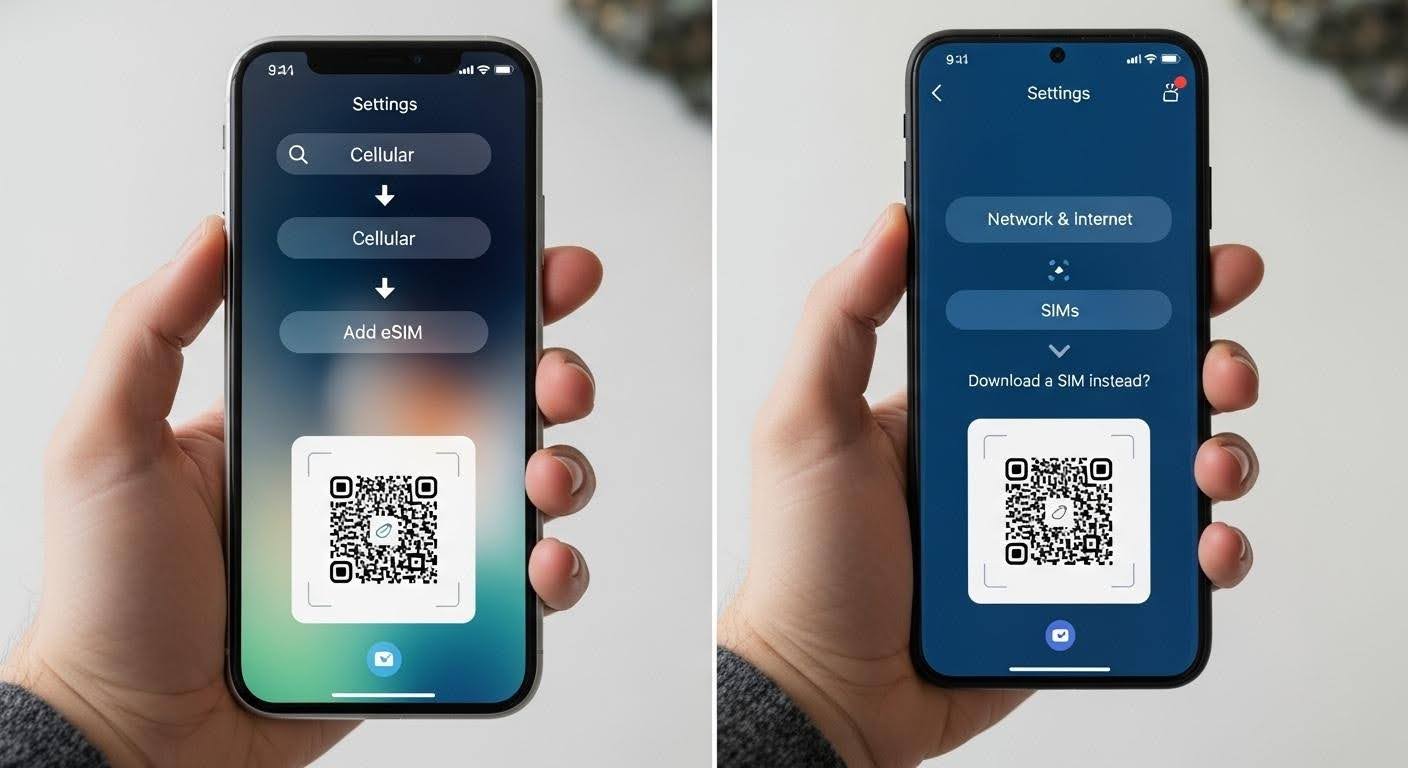
How to Set Up eSIM on iPhone
Follow these steps for iPhone:
Step 1: Open Settings
Go to Settings on your iPhone.
Step 2: Tap Mobile Data / Cellular
Depending on your region, tap Mobile Data or Cellular.
Step 3: Add eSIM
Select Add eSIM or Add Cellular Plan.
Step 4: Scan QR Code
Use your camera to scan the QR code sent by your eSIM provider.
Step 5: Confirm Plan
Your phone will detect the plan. Tap Continue and confirm installation.
Step 6: Label Your SIMs
You can name your plans like:
- Primary
- Travel
- New Zealand Data
This helps you manage both lines easily.
Step 7: Enable Data Roaming
Turn on Data Roaming for the eSIM line if required by the provider.
Step 8: Set eSIM for Mobile Data
Choose the newly added eSIM as your default mobile data line.
Your iPhone is now ready to use in New Zealand.
How to Set Up eSIM on Android
Android steps may vary slightly depending on the brand (Samsung, Google Pixel, etc.), but the general process is similar.
Step 1: Open Settings
Go to Settings.
Step 2: Network & Internet
Tap Connections, Network & Internet, or SIM Manager depending on your phone.
Step 3: Add Mobile Plan
Look for Add eSIM, Add Mobile Plan, or Download SIM.
Step 4: Scan QR Code
Scan the QR code provided by your eSIM provider.
Step 5: Download and Install
Your device will download the eSIM profile automatically.
Step 6: Activate the Plan
Turn the eSIM line on and set it as the preferred data SIM.
Step 7: Enable Roaming
If required, enable roaming under mobile network settings.
Your Android phone is now connected and ready for your New Zealand trip.
Tips for Using eSIM in New Zealand
To get the best experience:
- Install your eSIM before departure
- Activate it when you arrive
- Keep your primary SIM for calls or OTPs
- Monitor data usage if your plan has limits
- Save the QR code in case you need to reinstall
Common Setup Issues and Fixes
QR Code Not Working
- Ensure internet connection is stable
- Increase screen brightness if scanning from another device
- Try manual setup using activation details
No Signal After Activation
- Restart your phone
- Enable airplane mode for 10 seconds, then disable
- Make sure the eSIM line is turned on
Data Not Working
- Confirm mobile data is assigned to the eSIM
- Check APN settings if needed
- Turn on roaming if required
Final Thoughts
Setting up an eSIM for New Zealand on iPhone or Android is fast and beginner-friendly. It gives you instant connectivity, removes the hassle of physical SIM cards, and helps you enjoy your trip stress-free.
Whether you need maps in Auckland, bookings in Queenstown, or uploads from Rotorua, an eSIM ensures you stay online wherever your adventure takes you.


